AI Studio
From simple ideas to stunning images and professional video — skip the design tool headaches.
What is Doraverse Studio?
Doraverse Studio is your all-in-one creative playground, designed for teams to bring raw ideas to life — whether you’re crafting compelling images, dynamic videos, impactful slides, or intuitive mindmaps.
With a suite of powerful Generative AI tools, Studio transforms your concepts into impressive visual and multimedia assets, making creativity accessible and efficient at every stage — no more messy tabs or scattered tools.
Why Choose Doraverse Studio?
Collab with World’s Leading Generative Models
Put top-tier AI to work for you: Nano Banana Pro, Seedream 4.0, VEO 3, VEO 3.1, Sora 2, Kling, .etc.
10x Your Creative Workflow
Deliver standout creations at lightning speed with powerful automations: auto-prompt, auto-style, auto-size.
Less Manual Work, More Brilliant Results
Generate in a chat interface that remembers your context, syncing every creation to your ideas.
Image Generation with Studio
From your Doraverse home screen, simply select Studio icon from the main menu. This will take you directly to your Studio space.
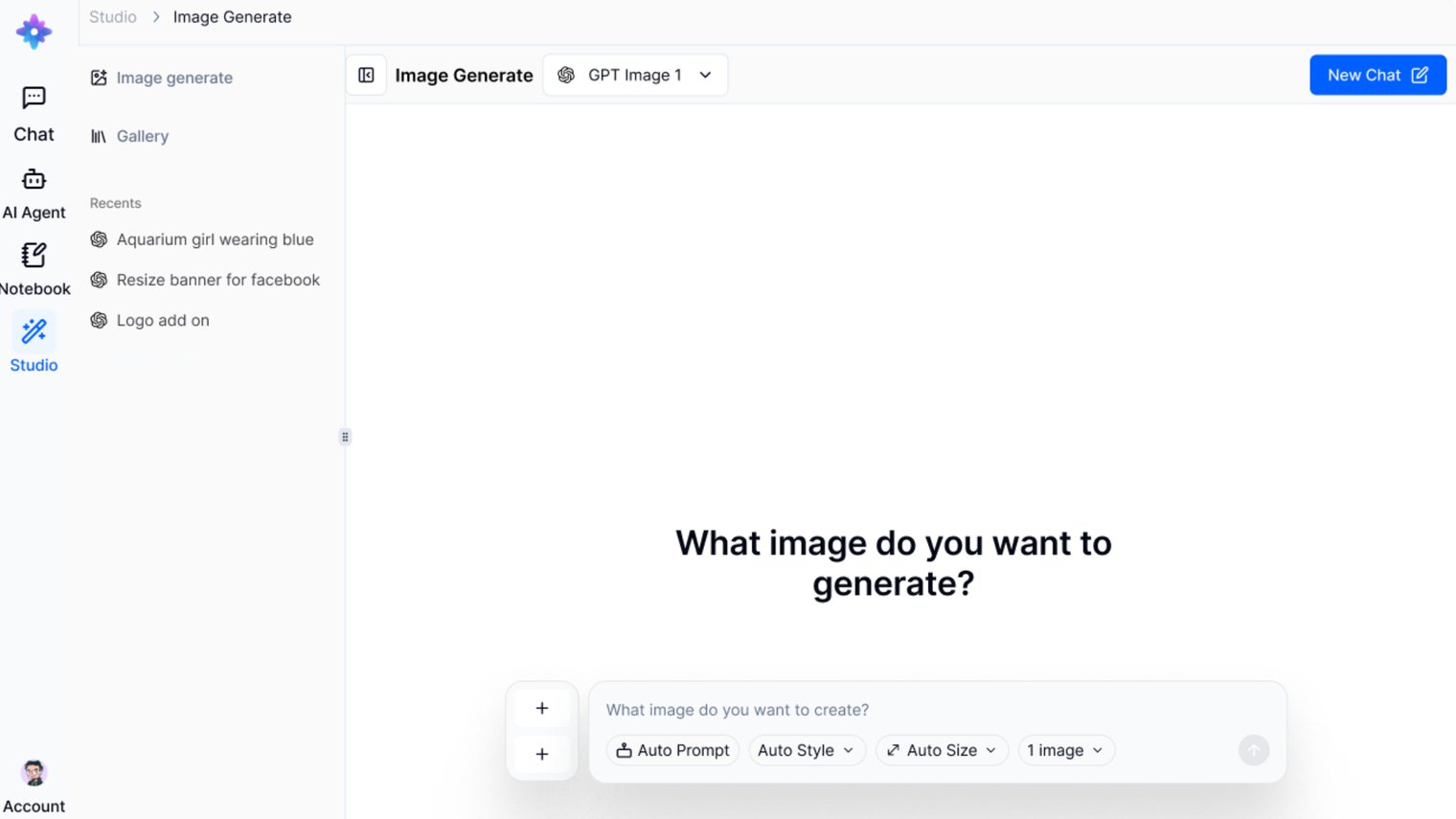
Choose from leading AI models from the dropdown on the top or the model cards in the center of the screen. Preview their strengths, supported format and pricing.
Type your image request directly into the chat box. Just describe what you want, and let Doraverse handle the rest.
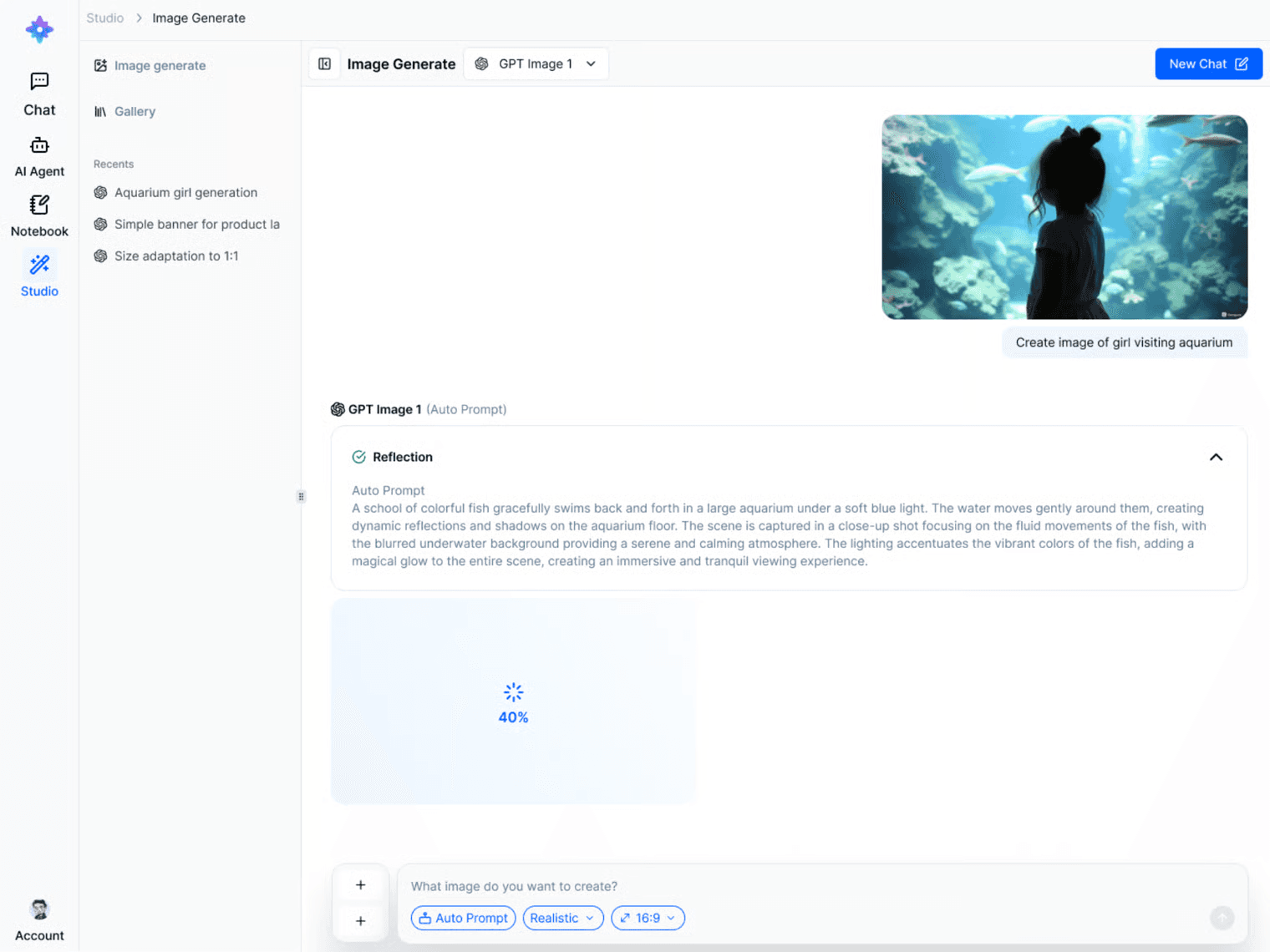
Level up your results with built-in automation tools for faster, easier, and more on-point creations:
Upload image for more context
Auto-prompt: Let AI refine your request for the best possible prompt.
Auto-style: Instantly apply your preferred artistic style, like cartoon, watercolor, anime, 3D, .etc.
Custom Size: Pick the perfect image size to match your platform or purpose.
Image Quantity: Generate up to 4 images at a time and choose your favorite.
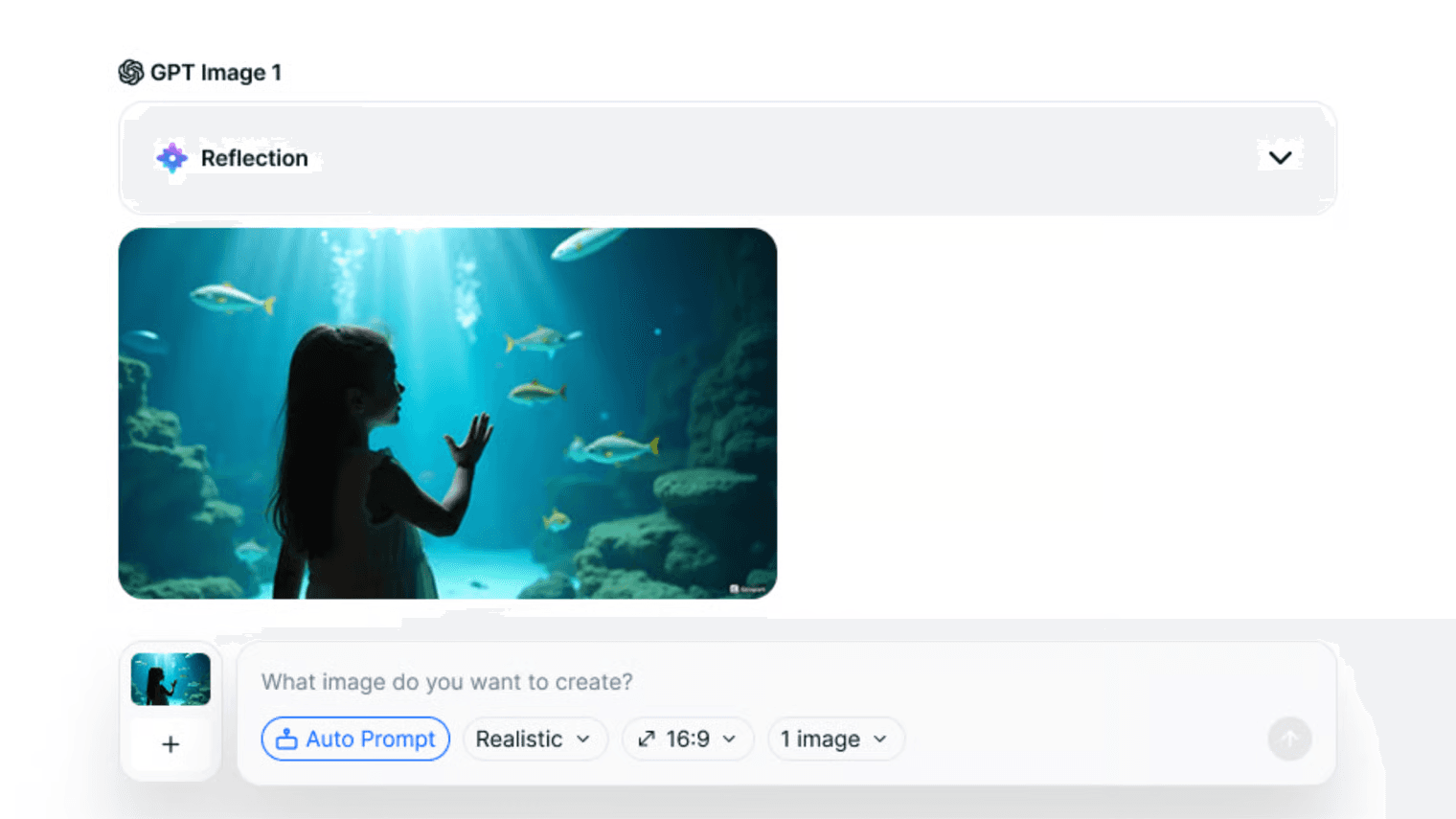
Once you’re happy with your creation, simply hover over the image and select Download Image to save it instantly.
If you want to make further adjustments, click Edit Image to continue refining your artwork, no need to start over. The image you want to edit will be automatically added to the upload section, ready for further customization.
Click on the image to easily view its detailed information. You’ll see attachments and key data such as creation time, author, dimensions, size, and file type.
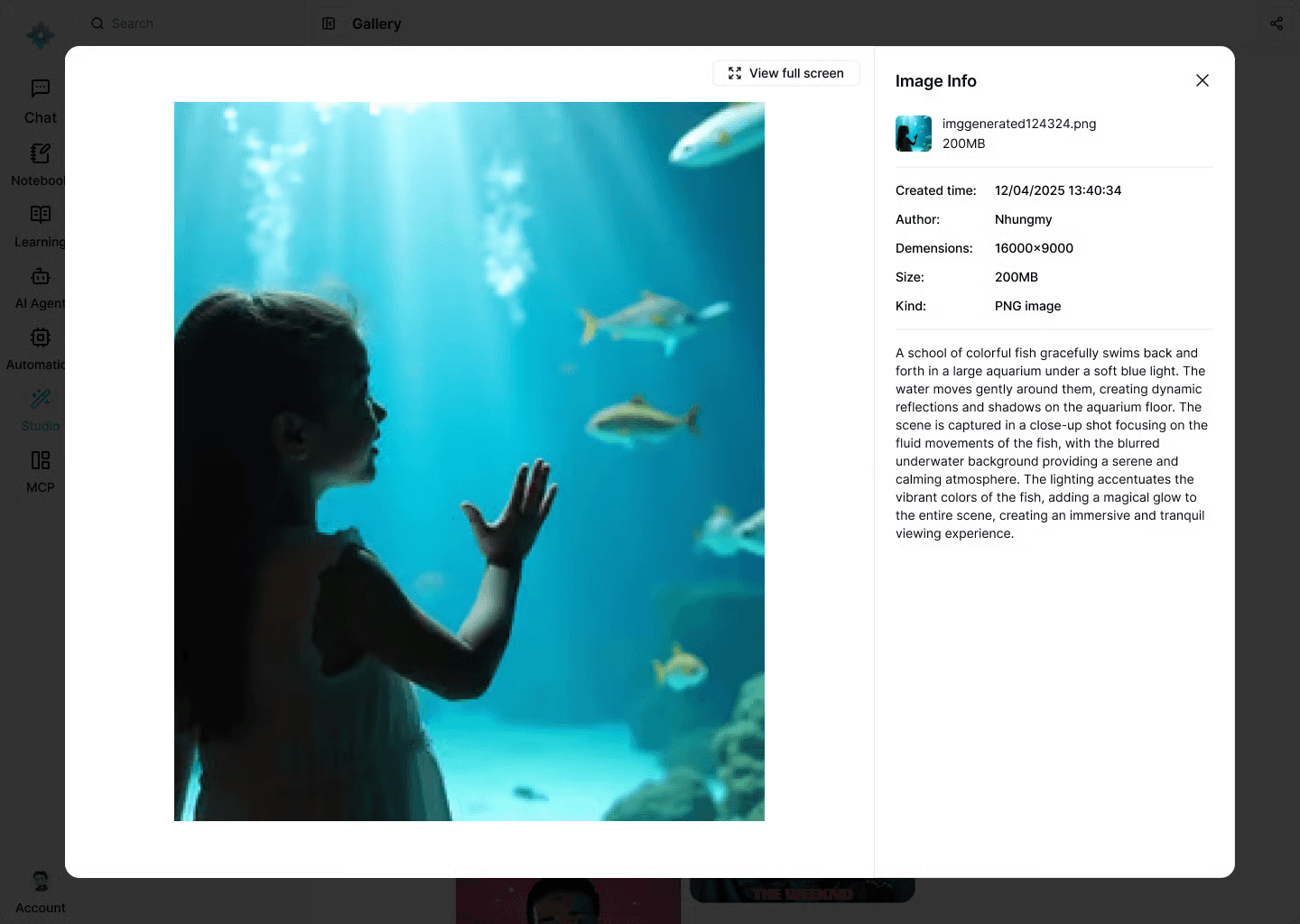
💡 Tips: Pay special attention to the last line. This is the AI prompt used to generate the image. It’s a helpful reference if you want to recreate, tweak, or reuse the prompt in the future.
Video Generation with Studio
Create high-quality videos, fast, right inside Doraverse Studio. We add the most advanced video models and keep them current, so what you use today is the best you can get.
What you can make
Text → Video: describe the scene and let the model do the magic.
Image / Multi-image → Video: animate a single look or stitch a light storyboard.
📌 Note: Some models handle both text and image inputs (e.g. Veo 3, Seedance). Others are image-to-video only (e.g. Kling Pro). Peek at the model card first — capabilities and limits are clearly listed.
Generate a video (same flow as Image Generation)
Pick a model: Check the description card for each model’s strengths, supported formats, and cost.
Upload images (optional): Skip this if you’re going pure text-to-video.
Type your prompt.
Set the specs: Choose aspect ratio, size, duration, and audio (if the model exposes it).
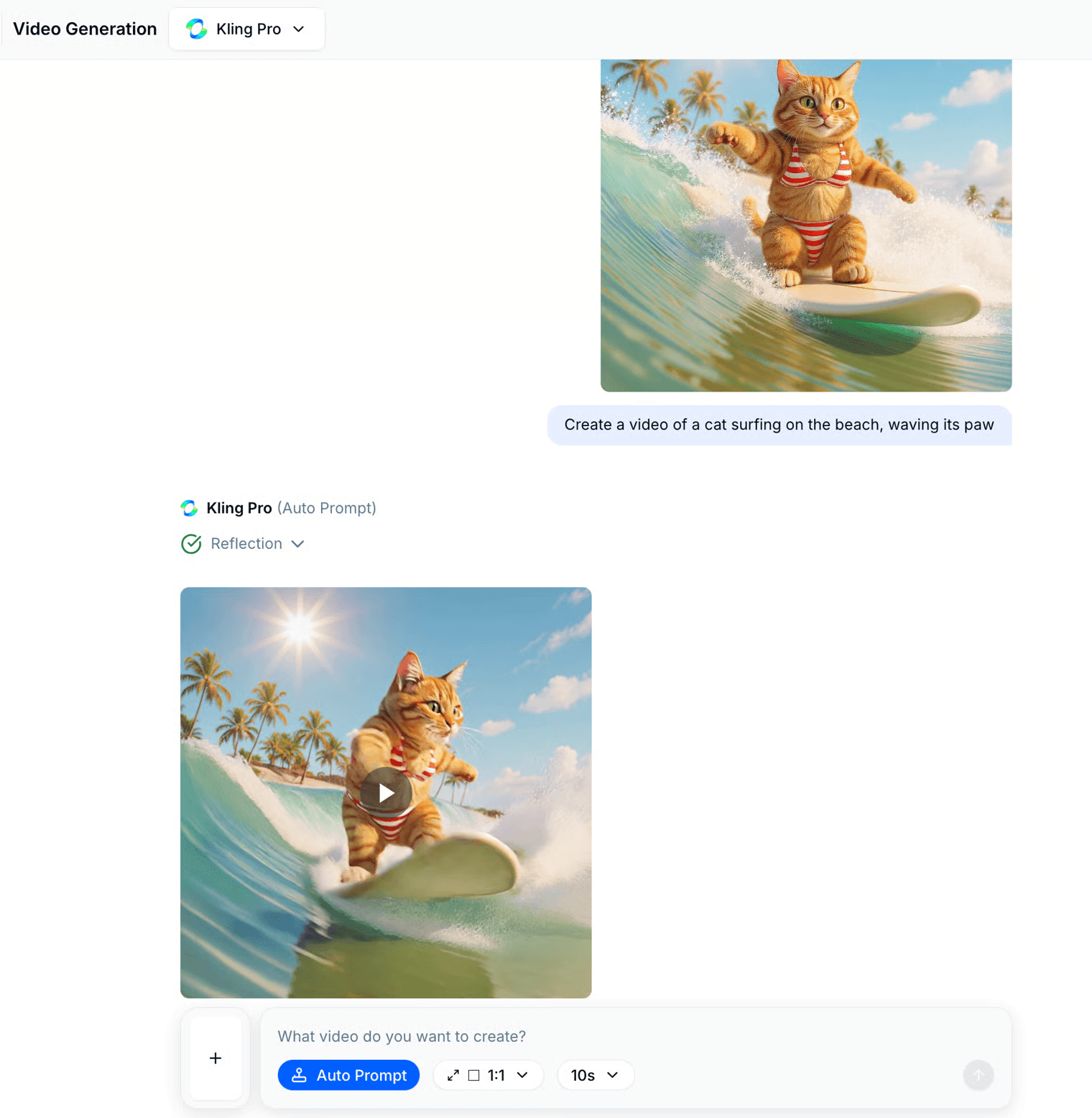
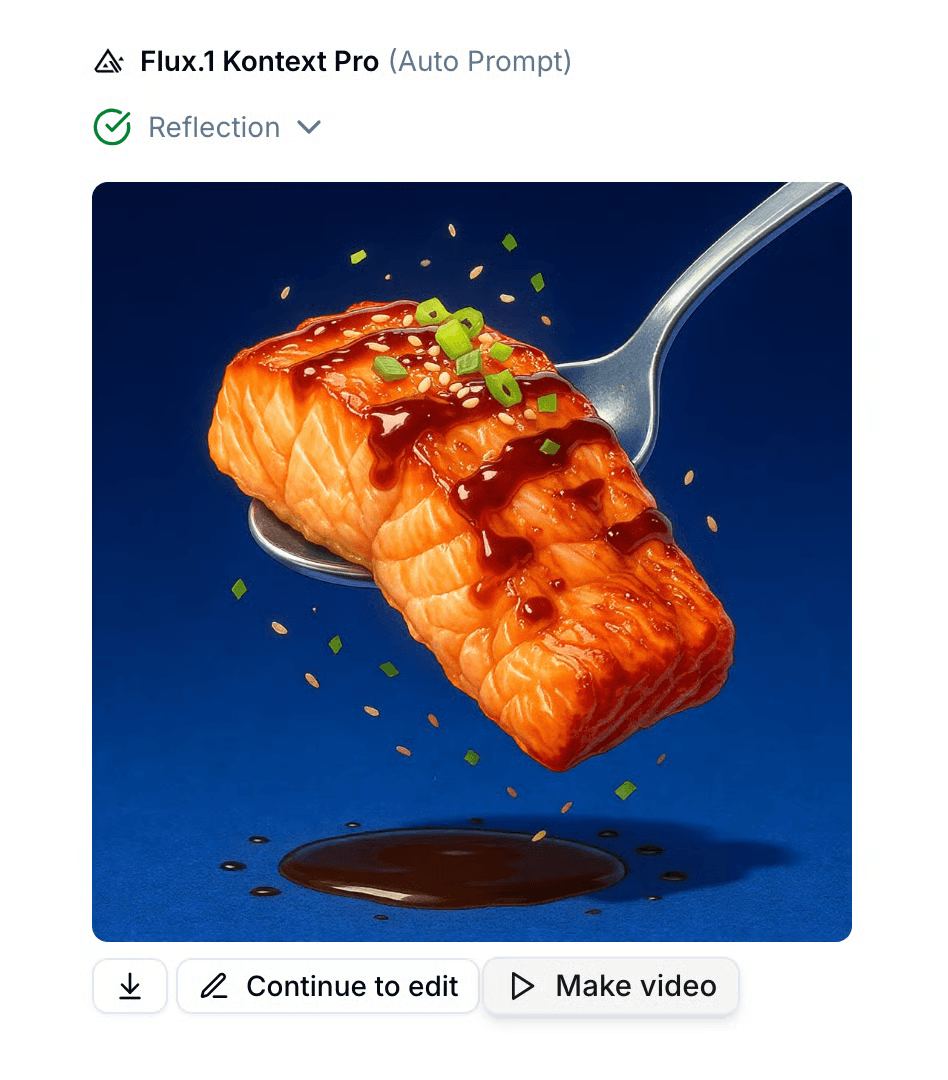
You can also make a video from your Studio image by opening your image → choose Make Video and repeat the same flow.
Manage Your Gallery
In the Conversation Sidebar, select Gallery — where all generated images are stored and neatly organized for quick access.
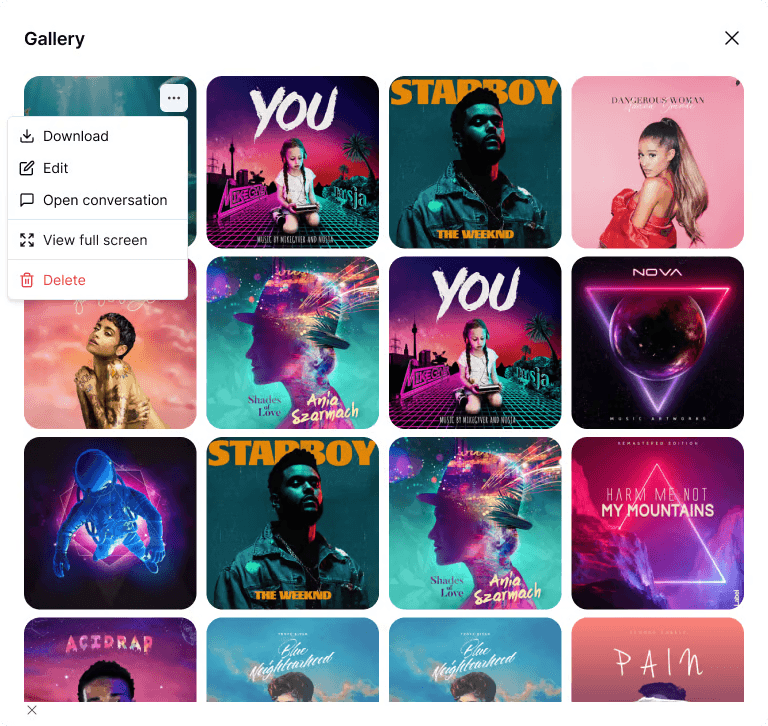
Inside the Gallery, you can easily:
Download your favorite images
Edit image
Open conversation to review the creative steps behind each artwork
View full screen for a detailed look
Delete images you no longer need
Join our Community
Any other questions? Get in touch