AI Chat
Discover AI capabilities that transform how you work.
The Chat space is your go-to place for everyday work. Instead of jumping between different apps, you can do it all in one unified workspace.
What you can do in Chat
Chat with multiple AI Models
Ask questions, conduct research, analyze data, write code, or create images using the smartest AI models available.
Use Powerful AI tools to supercharge daily work
Leverage advanced modes like AI Debate, AI Parallel, and AI Canvas to get better responses.
Organize your work with Project
Keep your chats, files, and specific instructions logically grouped by topic.
Automate repetitive work with Scheduled Tasks
Set up recurring workflows and let AI handle your routine chores on autopilot.
Chat with multiple AI Models
Click New chat in the left sidebar. A blank chat opens.
Click the model selector at the bottom-right of the chat bar to choose the model.
Doraverse continuously updates the available models. See all available AI models.
Powerful AI tools to supercharge daily work
The toolbar at the bottom of the chat bar gives you quick access to powerful tools:
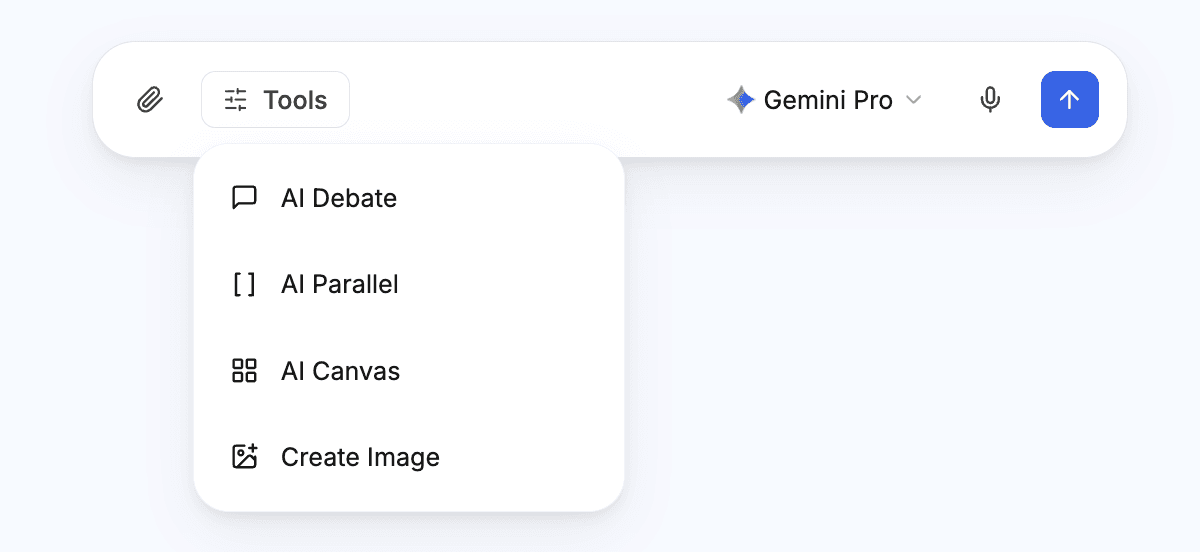
AI Parallel
AI Parallel enables multiple AI models to process the same request at the same time. Each model works independently, producing its own response without influence from the others. Doraverse then presents these outputs side by side for comparison and synthesis.
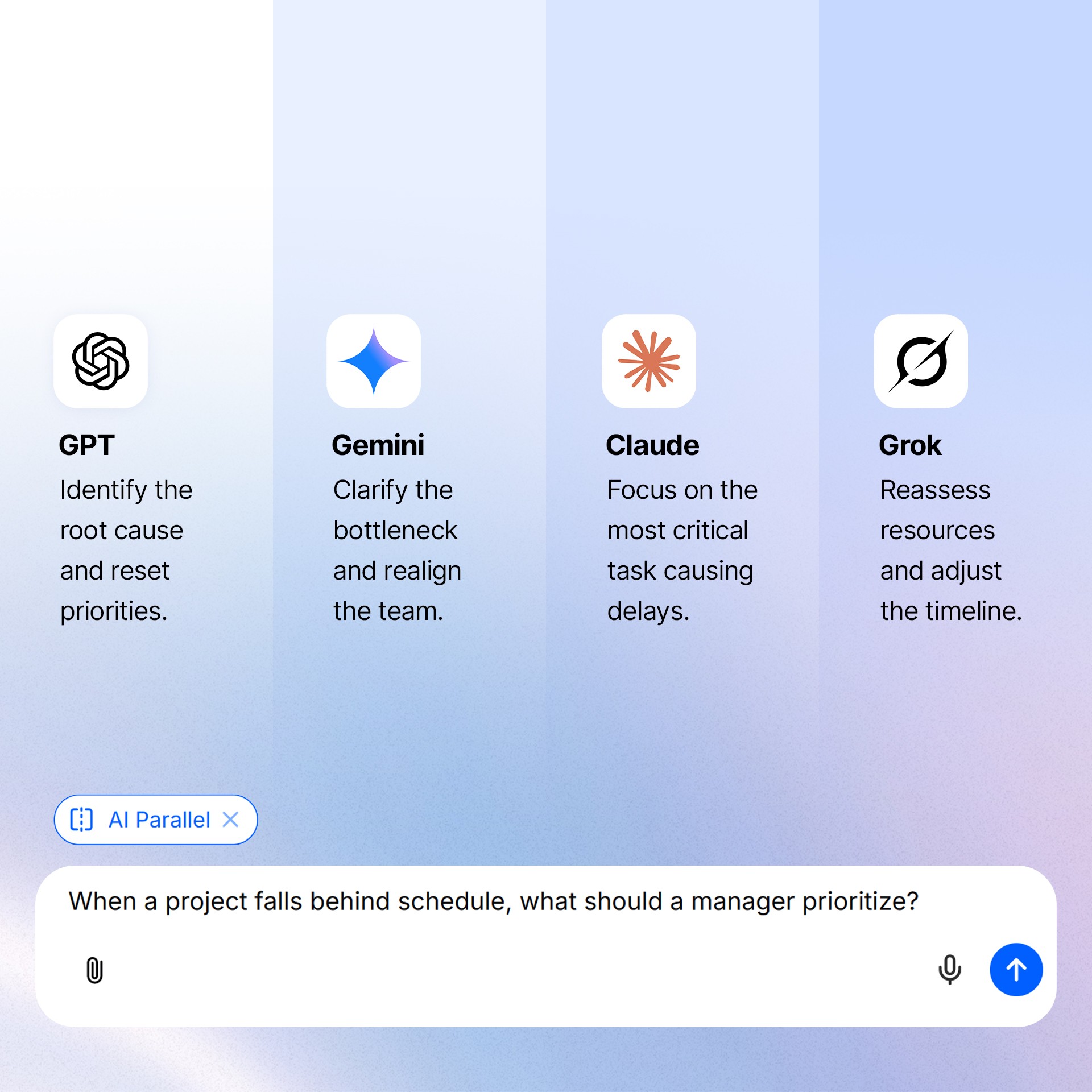
AI Parallel is designed to:
Surface multiple perspectives and solution paths
Reduce blind spots caused by a single model’s assumptions
Accelerate exploration during early-stage thinking
AI Parallel is designed to support users who want quick comparison, diverse options, and independent viewpoints from multiple models in their day-to-day work. It is particularly effective for: brainstorming and ideation; research and discovery or exploring alternative approaches before committing to a direction.
AI Debate
AI Debate introduces structured critique into the AI workflow. Instead of stopping at an initial answer, you can assign multiple AI models to challenge, analyze, and refine that output through debate. One model may propose a solution, while others examine weaknesses, counterarguments, risks, or missing considerations.
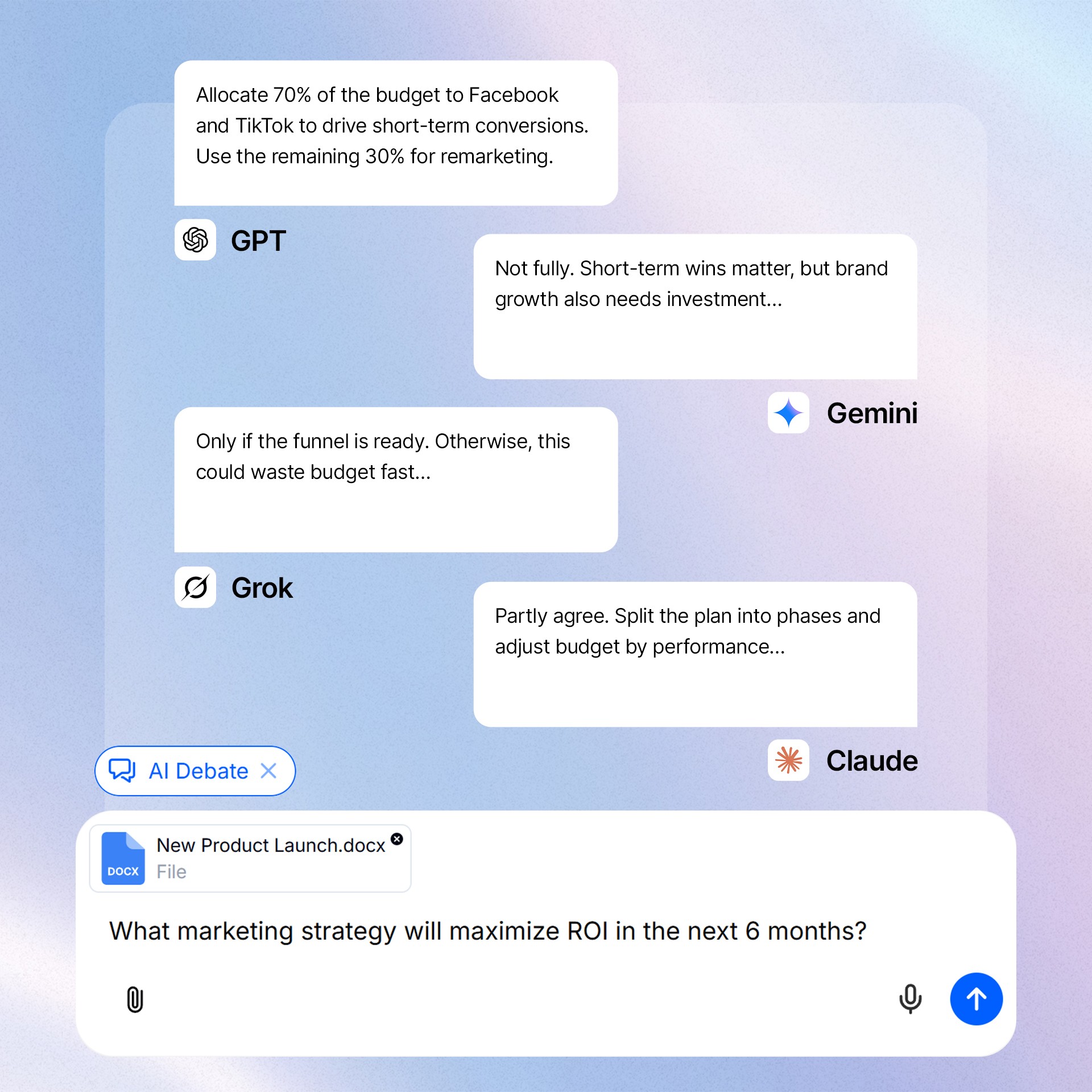
AI Debate's iterative process helps:
Expose flawed reasoning or weak assumptions
Strengthen arguments before decisions are made
Improve confidence in the final output
AI Debate is designed to support users who want multi-perspective reasoning and clearer decision-making in their day-to-day work. It is especially valuable for strategic planning and decision-making; risk analysis or situations where correctness and reasoning quality matter more than speed.
AI Canvas: Turn any idea into clear visuals with a single command
AI Canvas is a visual space for AI-generated outputs, right inside your chat. When the AI generates files like JSON/HTML/CSS/JS, AI Canvas opens them in a standalone UI window, executes the code, and renders live previews.
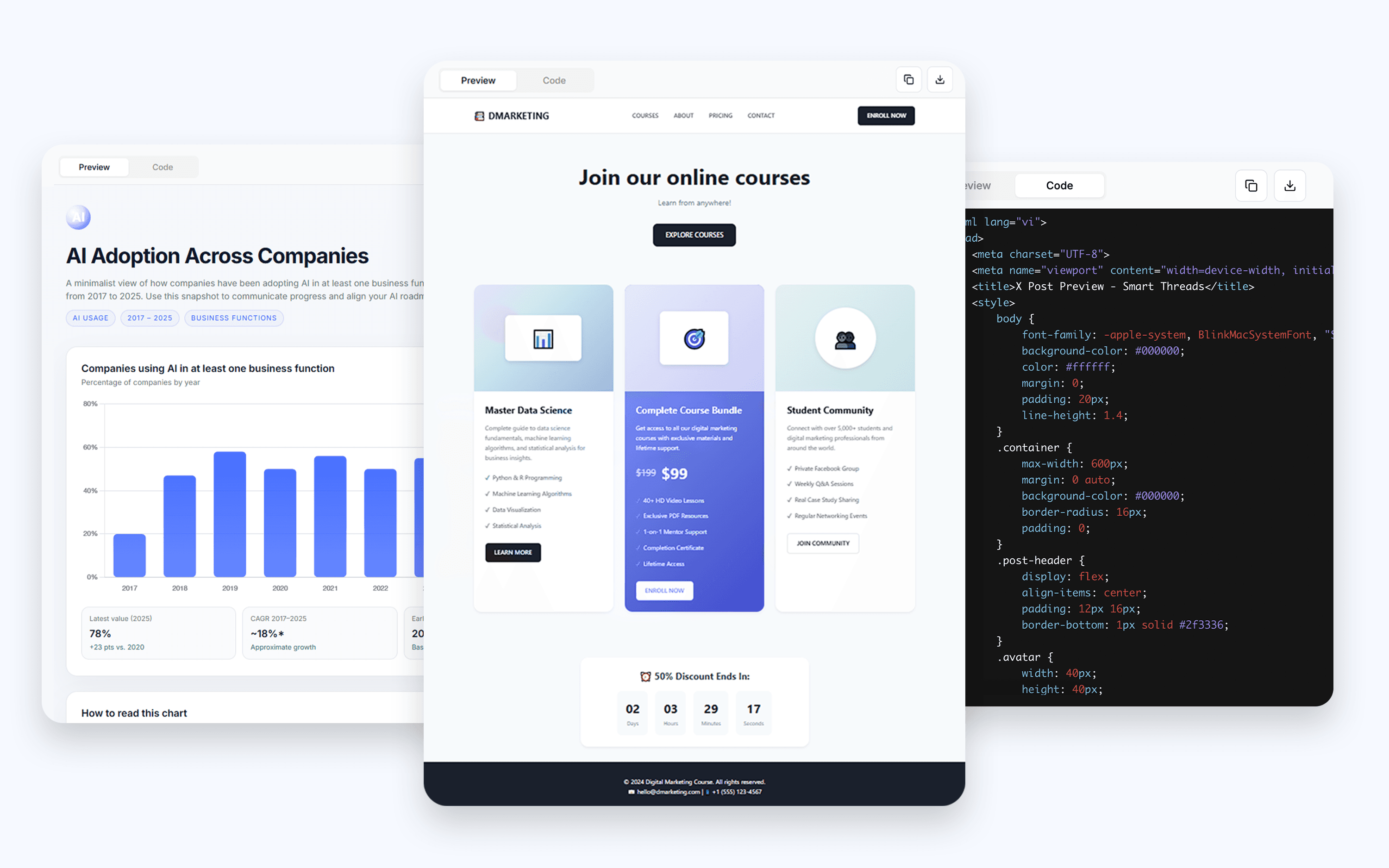
What you can do with AI Canvas:
Create data dashboards and reports with interactive elements and responsive design.
Transform .csv and .xlsx files into dynamic reports featuring metrics, KPI cards, charts, and visual cohorts.
Design on-brand HTML emails.
Build microsites, landing pages, and even full app interfaces for your campaigns.
Construct dynamic forms, organizational charts, architecture maps, and more.
Work with AI responses
After each AI response, an action bar appears with the following options:
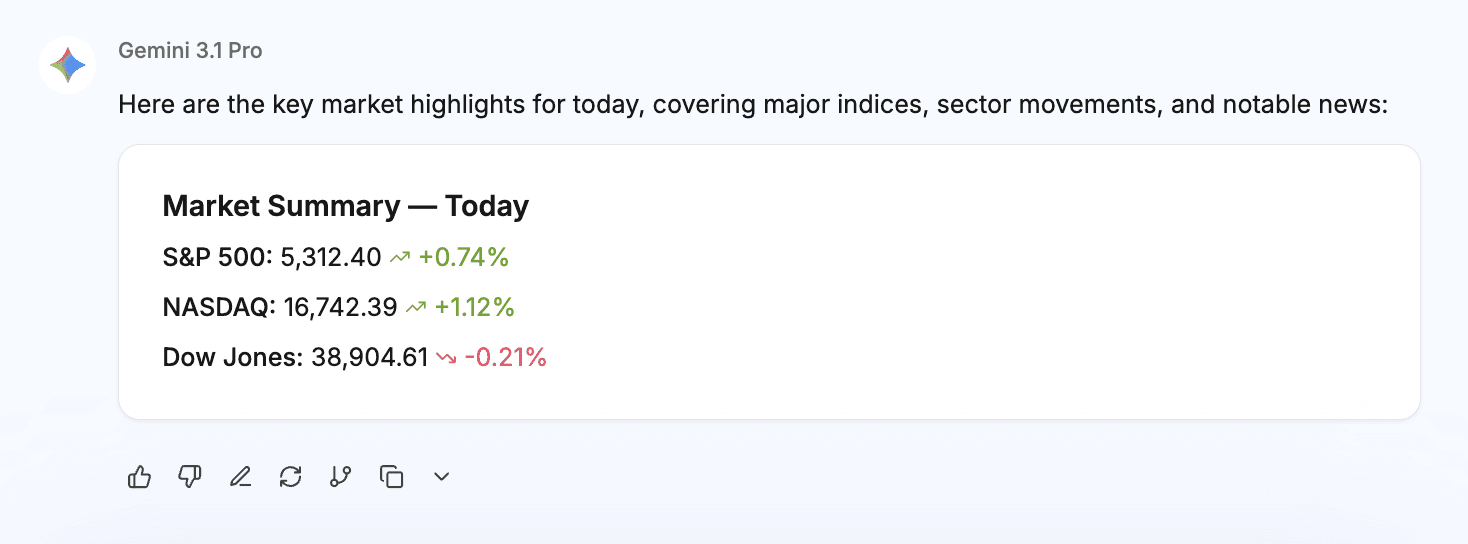
👍 / 👎 — Mark a response as helpful or unhelpful to improve the AI
Edit — Rewrite the response and click Save & Submit to send your improved version
Copy — Copy as Markdown (with formatting) or Plain Text
Regenerate — Request a new answer to the same question
Branch from This — Start a new conversation thread from this point, keeping the original chat intact
Projects: Organize your work
Projects keep related chats, files, and custom instructions together in one place — so your AI always has the right context for a given topic, client, or workflow.
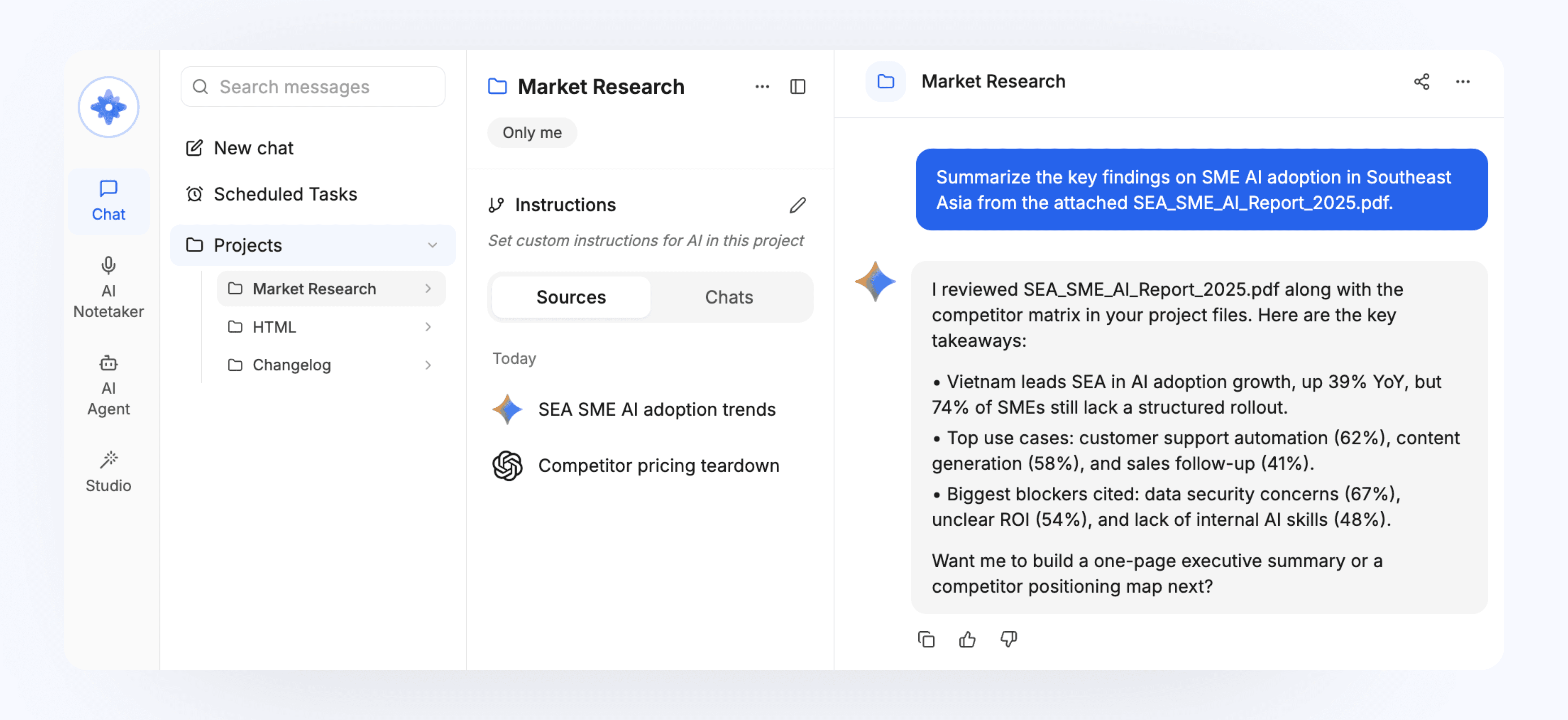
To find Project:
Open the left sidebar and find Project.
To create a Project:
Click the + button next to Projects
Enter a project name and click Save.
Inside a Project space, you'll find:
Instructions — Set custom AI behavior for this project: tone, focus area, language, rules, and more. Every chat in the project follows these instructions automatically.
Sources — Upload files (PDFs, spreadsheets, images, etc.) that all chats in this project can reference.
Conversations — All chats linked to this project, organized in one view for easy access.
To start a chat within a Project:
Click New chat from inside the project, or move an existing chat to a project using the three-dot menu on any conversation.
Tip: Projects are ideal for ongoing work — client accounts, content series, research topics, or recurring team workflows where consistent AI context matters.
Scheduled Task: Automate repetitive work
Doraverse Scheduled Tasks are a no-code way to put repetitive tasks and simple workflows on autopilot in minutes. With Scheduled Tasks, anyone can set up a task where AI runs the workflow end to end—with no coding and no setup headaches:
AI can use Web Search, Code Interpreter, and AI Canvas so your task can research, analyze, generate, and deliver outputs automatically.
AI follows your instructions and processes the work step by step, the same way you’d do it—day or night, on schedule.
When it’s done, Doraverse sends you an email notification with a link to access the result.
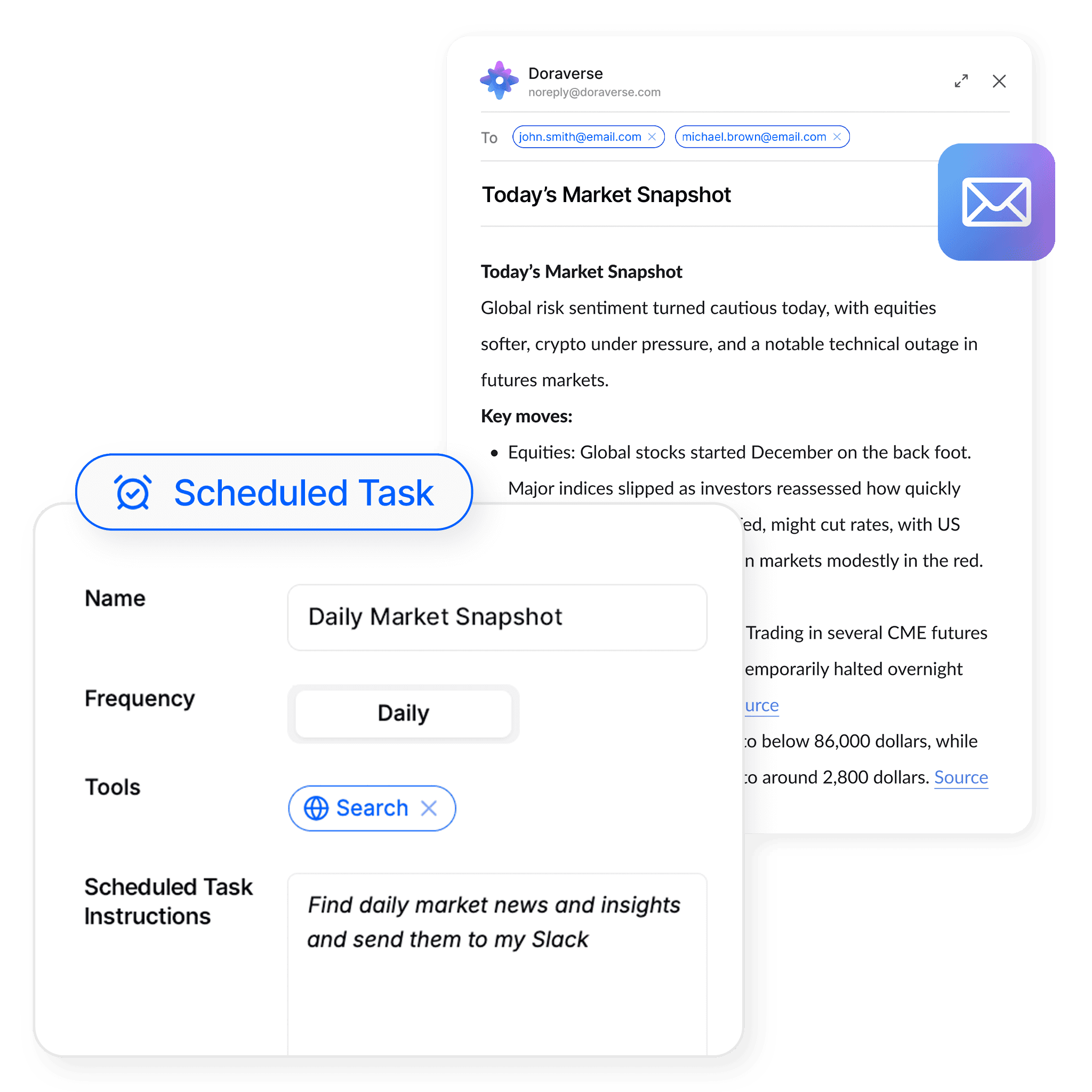
To find Scheduled Task:
Open the left sidebar and find Scheduled Task.
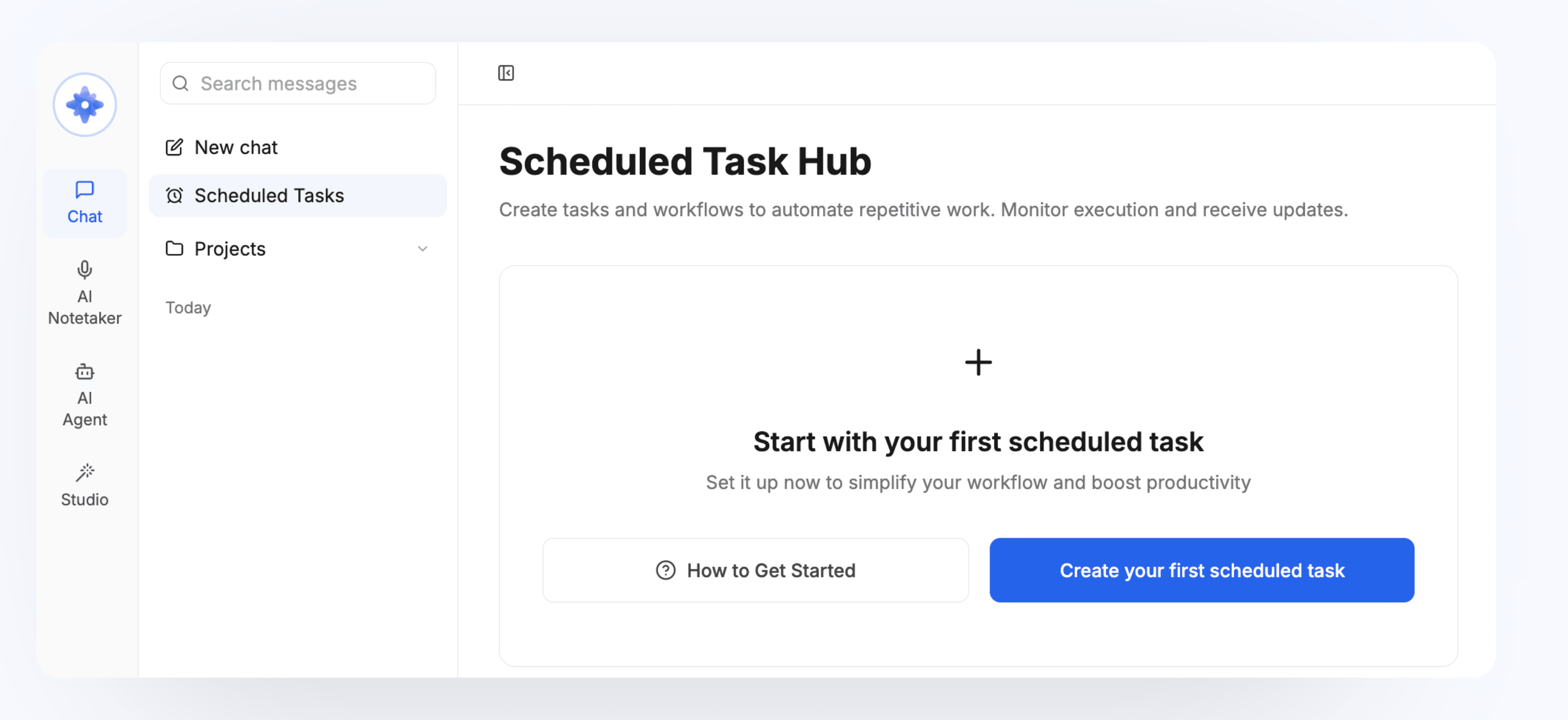
To create a Scheduled Task:
Click Scheduled Task in the left sidebar to open the Scheduled Task Hub.
Click Create your first scheduled task (or + if you already have tasks).
Fill in the setup form:
Field | How to set up |
|---|---|
Name | Give your task a clear name, e.g. Daily Competitor News Digest |
Frequency | Choose: Once, Daily, Weekly, or Monthly |
Time | Set the time the task should run (24-hour format) |
AI Model | Select the provider and model for the task |
Send email when completed | Toggle on to receive an email notification with the result |
Tools | Enable Search (for live web data) and/or Code Interpreter (for data processing, charts, and calculations) |
Files | Attach any reference files the AI should use |
Instruction | Describe the task's objectives, requirements, and execution process: what the AI should do, where to source data, and the expected output format. |
Click Run Test in the preview panel to verify the output before going live.
AI will execute the task once so you can review the result. Adjust instructions, tools, or model if needed.
Click Create Scheduled Task to activate it.
When everything looks good, click Create Scheduled Tasks. Your scheduled task is now live.
From the Scheduled Task Hub, you can monitor status, view logs, and pause, resume, or edit tasks at any time.
Once a Scheduled Task is dialed in, it can save you hours every day—and when you multiply that across dozens of scheduled tasks running reliably in the background, your productivity increases dramatically.
Examples of Scheduled Tasks you can run in Doraverse
Daily market & competitor research: Track market changes and competitors every day, then send a consolidated summary report.
Daily information digest: Compile fresh updates such as stock movements, rankings/leaderboards, or industry news into a quick brief.
File maintenance and updates: Automatically update spreadsheets, generate new files, or refresh recurring reports.
Join our Community
Any other questions? Get in touch