AI Namecard
The Ultimate Business Card Scanner & Networking Tool
Doraverse AI Namecard is your "Second Brain" for professional networking. It allows you to instantly scan business cards and create contacts without typing a single word.
Going far beyond a simple digital namecard app, it intelligently manages your network by capturing meeting contexts and delivering AI-driven insights—empowering you to follow up professionally and effectively.
Why Choose AI Namecard for Professional Networking?
Digitize in a Flash: Automatically scan, extract, and save contact information to your app in seconds.
Keep the Context Alive: Save the "story behind the handshake" by adding tags and notes about where you met and what you discussed.
Deep Dive with AI Research: Let the AI act as your personal researcher. It performs open web searches to synthesize overviews, products, and news, giving you the upper hand in your next conversation.
Multilingual Support: Seamlessly recognizes international cards (Japanese, Chinese, Korean, etc.) and delivers AI Research insights in your language of choice.
By using AI Namecard, you are doing much more than just saving a phone number. You are:
Eliminating manual data entry to save valuable time.
Preserving meeting context so you never forget a face or a story.
Gaining deep insights through open AI research to lead your next business meeting with confidence.
How to use AI Namecard to Scan Business Cards
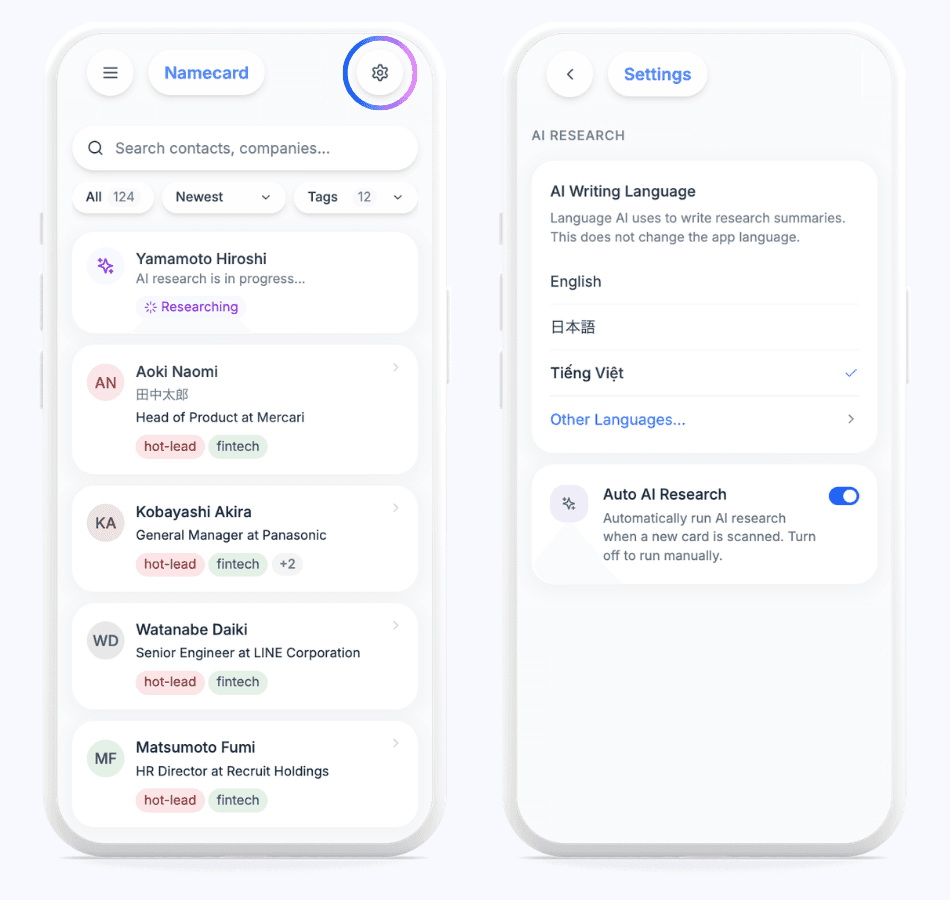
Step 1: Set Up Your AI Preferences
Before scanning, take a quick moment to configure how the AI works for you. This ensures that the insights fit your workflow and are delivered in your preferred language.
Open AI Namecard and navigate to Settings.
Select your preferred AI Writing Language. The AI will generate all research summaries and insights in this chosen language.
Toggle Auto AI Research on or off based on your needs.
Step 2: Scan to Create Digital Contacts
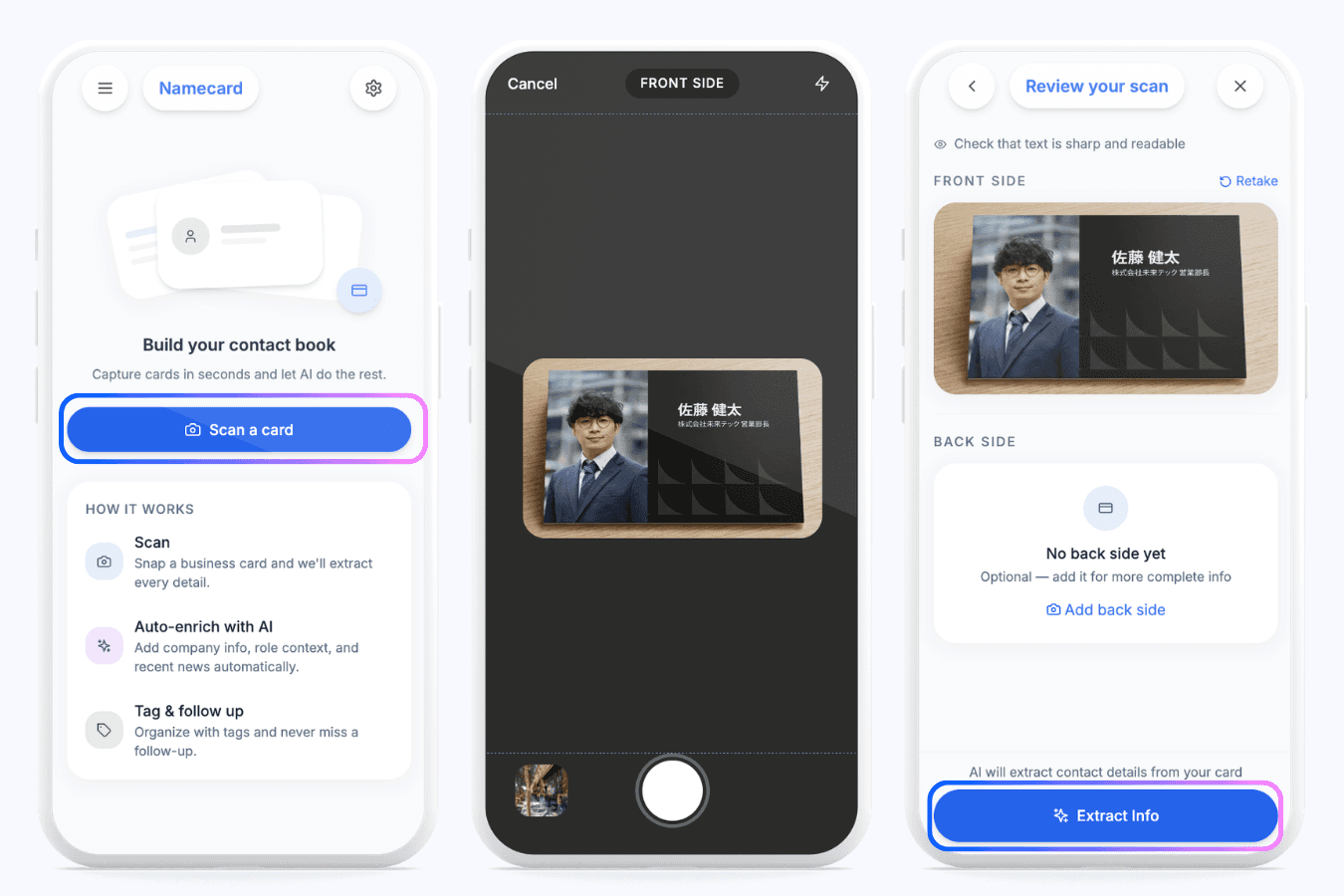
On the home screen, tap Scan.
Capture the front of the business card clearly.
Add back side if there is important information on the back.
When you've done, tap Extract Info and watch the magic happen.
Step 3: Review and Refine Data
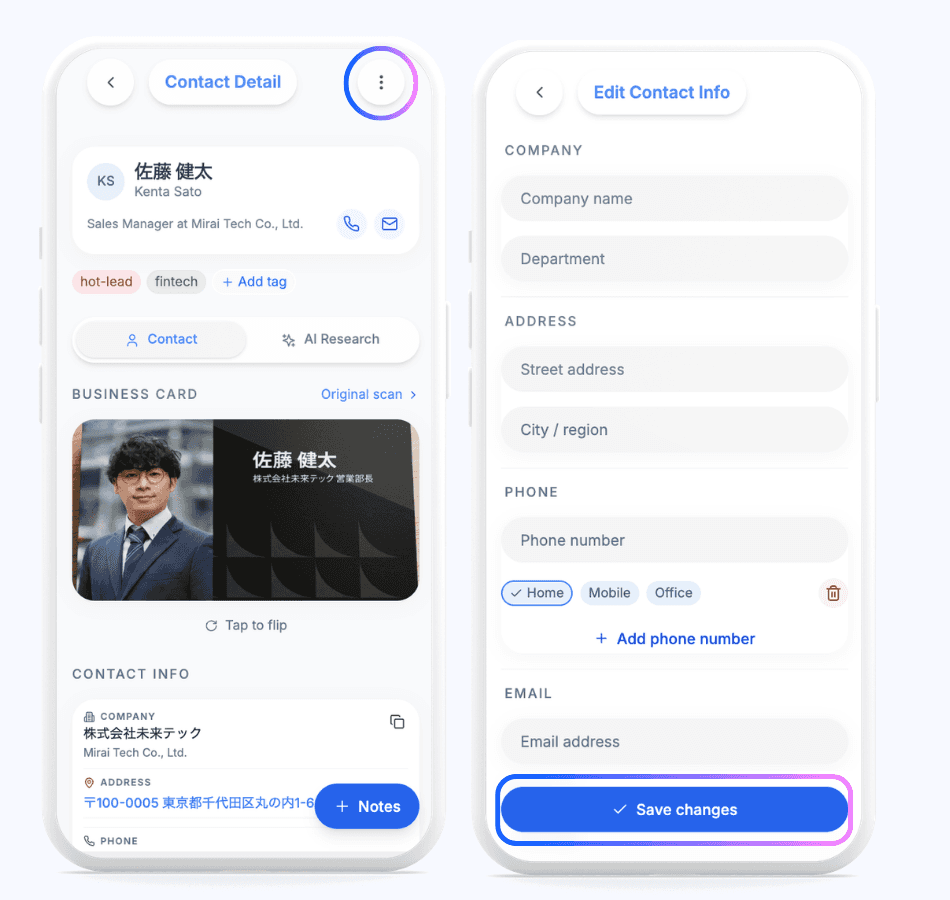
Once the contact is created, you retain full control to edit and add any necessary details to ensure 100% accuracy.
Open the Contact Detail screen to review the extracted fields.
Tap Edit contact to update any missing or incorrect information.
Tap Save to confirm your changes.
Step 4: Add Tags & Notes for Contextual Memory
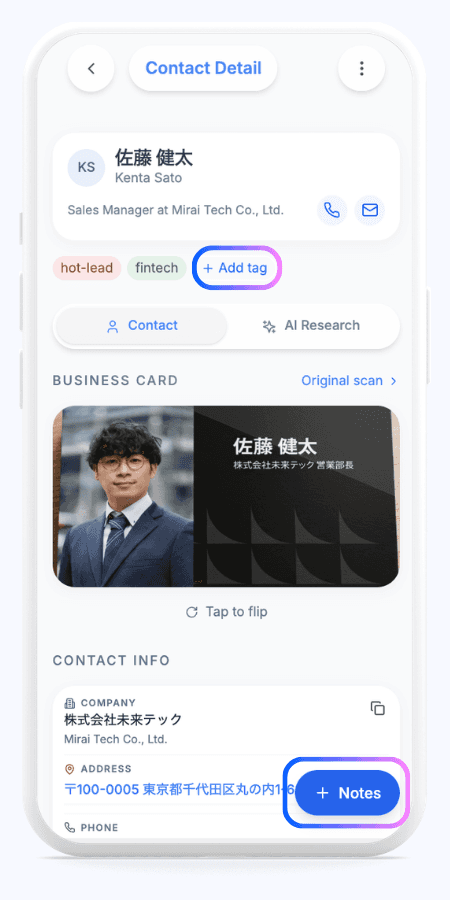
A standard business card only tells you who someone is. What you really need to remember is where you met, what you discussed, and how you plan to follow up. To do that:
Tap Add tag to categorize the contact (e.g., "April Event", "IT Director").
Use Add Note to record specific, memorable details from your conversation.
Step 5: Deep Dive with AI Research
Going far beyond basic data enrichment, AI Namecard acts as your personal intelligence analyst. It conducts open web discoveries, compares multiple sources, and synthesizes complex information to provide actionable insights about your partners and their companies.
In the contact screen, open the AI Research tab. Tap Generate Research to let the AI scan the web.
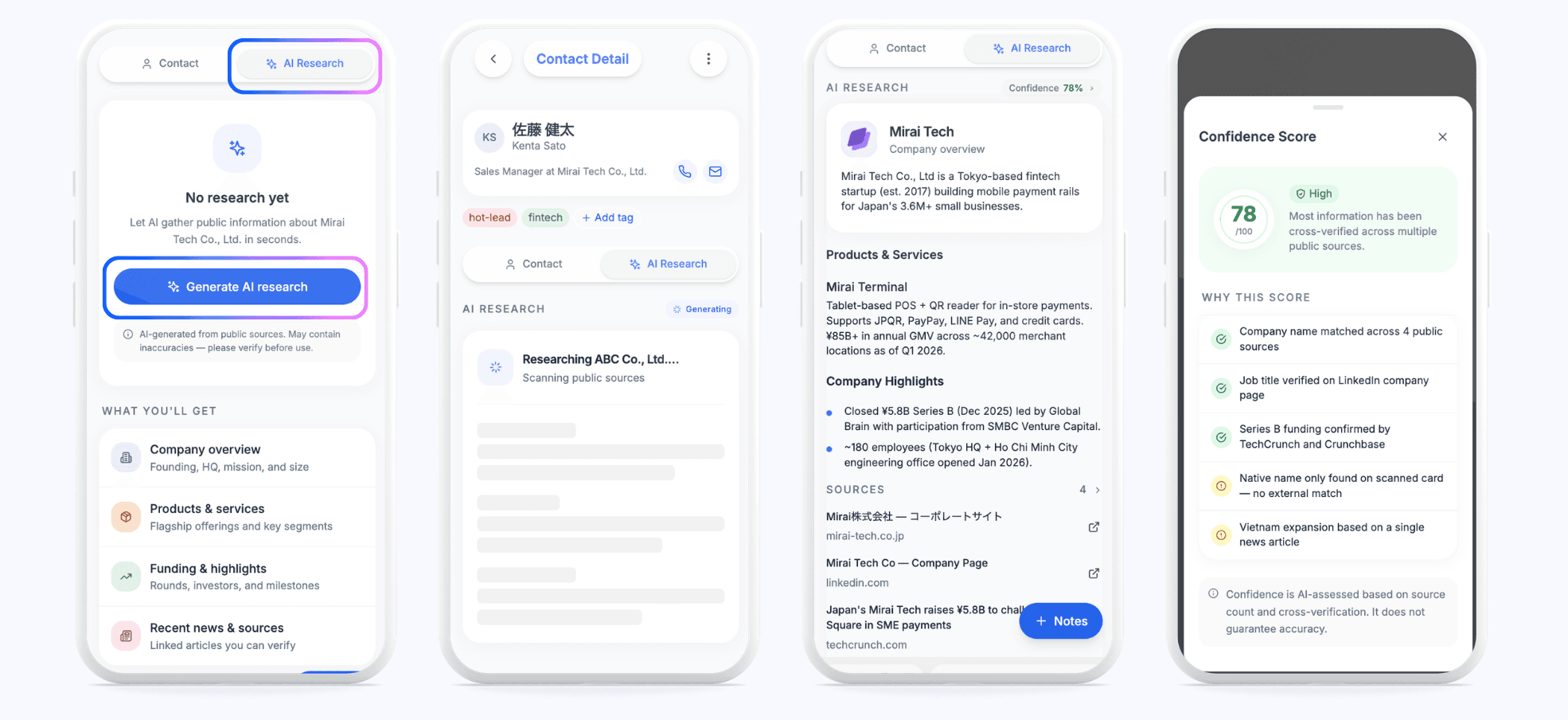
Once the research is complete, you will receive a summary packed with comprehensive insights to perfectly prepare you for your next meeting:
Company Overview
Products & Services
News & Company Highlights (includes clickable sources for easy verification and cross-checking)
Confidence Score: Evaluates the profile's reliability based on the number of sources and cross-verification.
Smart Contact Management: Search, Update, and Merge Contacts
Find Anyone Instantly
As your network grows, finding the right person quickly is essential. Use our smart search options to retrieve contacts in seconds:
Search by Context: You don't need to remember an exact name. Just search using what you do remember (e.g., "Tech company director met at April Tech Fest"). The AI will scan your notes and pull up the right person.
Sort & Filter: Use sorting, filtering, and tags to narrow down your list effortlessly.
Keep Your Professional Network Up to Date
To update a contact, simply open their profile, tap Edit contact, and save your new changes.
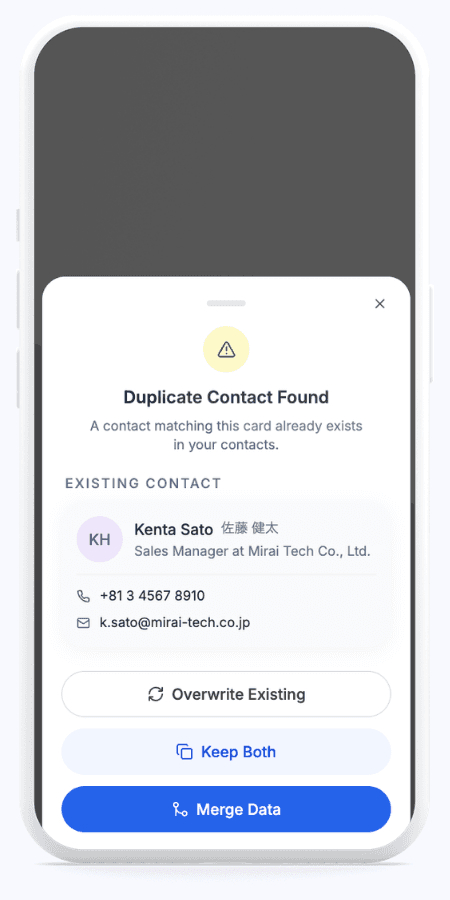
If you scan a new card for a contact already in your list, the system will automatically detect the duplicate. To keep your network perfectly organized, you will be prompted with three flexible options:
Override existing: Completely replace the old information with the data from the latest scan.
Keep both: Save the newly scanned card as a separate, independent profile.
Merge: Combine the new details with your existing contact so you don't lose any past notes or tags.
Best AI Namecard Use Cases: When to Use a Business Card Scanner
Right after meeting clients, partners, or candidates.
Following seminars, exhibitions, or networking events.
Whenever you have a stack of physical cards and dread typing them out manually.
Before following up, when you need detailed background information on a prospect's company.
Ready to elevate your networking?
The AI Namecard feature is available now within the Doraverse app. Start digitize your network today and never lose track of a valuable connection again.
Download Doraverse and try it out at App Store or Google Play.
Join our Community
Any other questions? Get in touch